How to Install & Run Your Strategy in TradeStation & MultiCharts
Thanks for your purchase. This guide gets your RelaxedTrader strategy installed and running — from the download to your first backtest — in TradeStation 10, with a MultiCharts section at the end. The process is the same for every strategy in the store, so keep this page handy for any you own.
What you downloaded
Your purchase is a ZIP file — find it in your order confirmation email, or sign in and go to My Account → Downloads. Right-click → Extract All first (don’t open files from inside the ZIP). Inside you’ll find:
The code comments are your cheat sheet
Every strategy’s required symbol, timeframe, and Max Bars Back value are written in the comment lines (the ones starting with //) at the top of the strategy code. You’ll open and read those in Step 3. (If a plain-text .txt copy of the code is included, it’s the same strategy — just for reference.)
Download & unzip
- Download the ZIP from your order email or My Account → Downloads.
- Right-click → Extract All so the files are unzipped.
- Note where the
.eldand.tswfiles land (Downloads is fine).
Import the strategy
- In TradeStation, go to File → Import/Export EasyLanguage. (Tip: you can also double-click the
.eld.) - Choose Import EasyLanguage file (ELD, ELS or ELA), then Next.
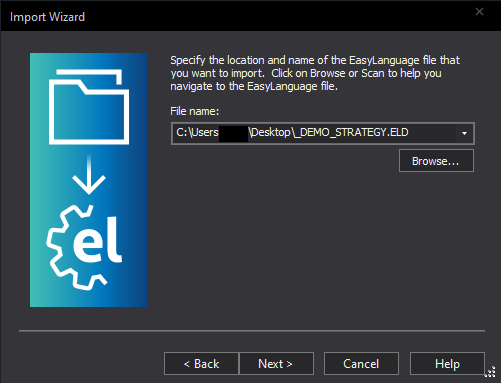
- Click Browse, select the
.eldyou unzipped, then Next. - Review the strategy name and description, click Next, then Finish.
Open the code & read the comments
This is where you learn the strategy’s required symbol, timeframe, and Max Bars Back value — you’ll need them in the next steps.
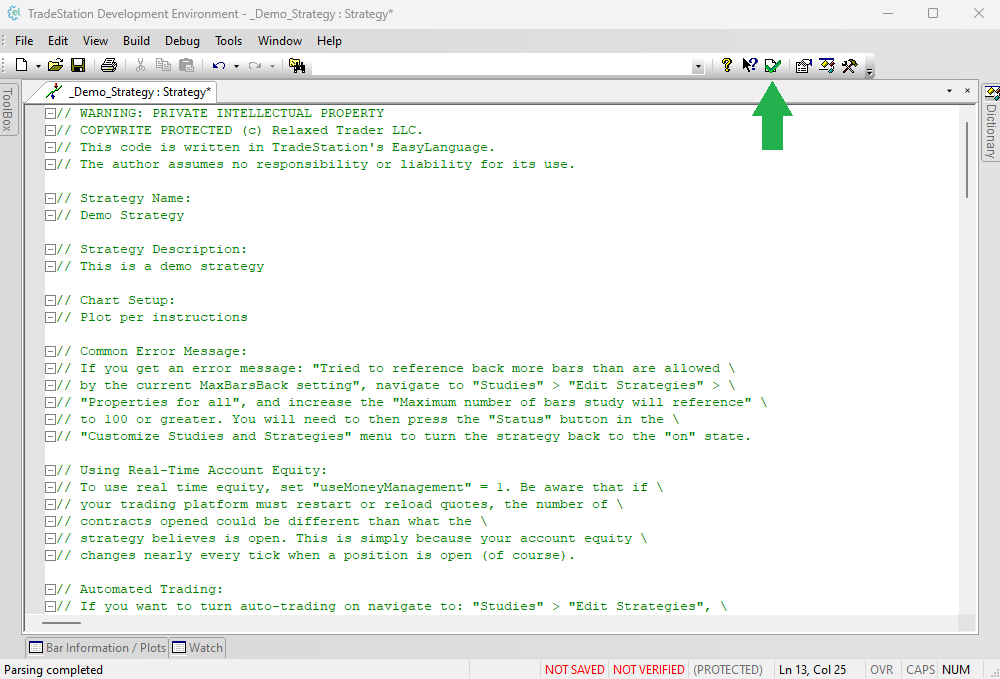
- Go to Apps → EasyLanguage → File → Open, select the imported strategy, and click Open.
- Read the comment lines (everything with
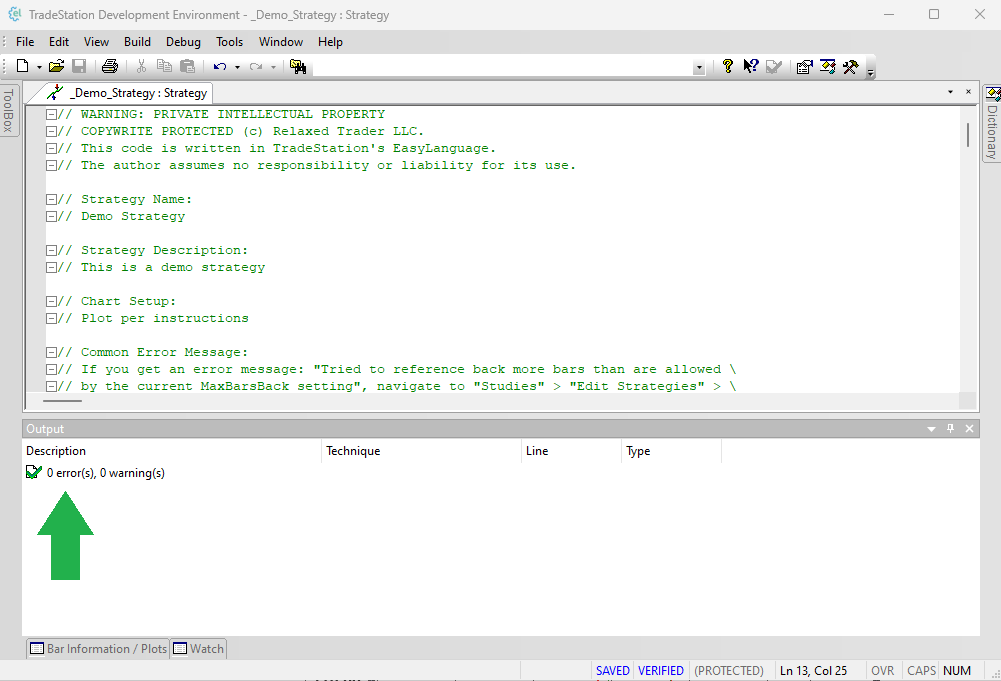
//in front) at the top — note the symbol, timeframe, and Max Bars Back value. - Press F3 to Verify. It should verify with no errors. (If you ever edit the code, re-verify.)
Load the Workspace
The included .tsw Workspace is a chart already set to the right symbol and timeframe — so you don’t have to build one.
- Copy the
.tswfile intoDocuments\TradeStation 10.0\Workspaces(under your Windows username). If TradeStation looks elsewhere on your machine, search for the Workspaces folder. - In TradeStation, go to File → Open Workspace and open the strategy’s workspace.
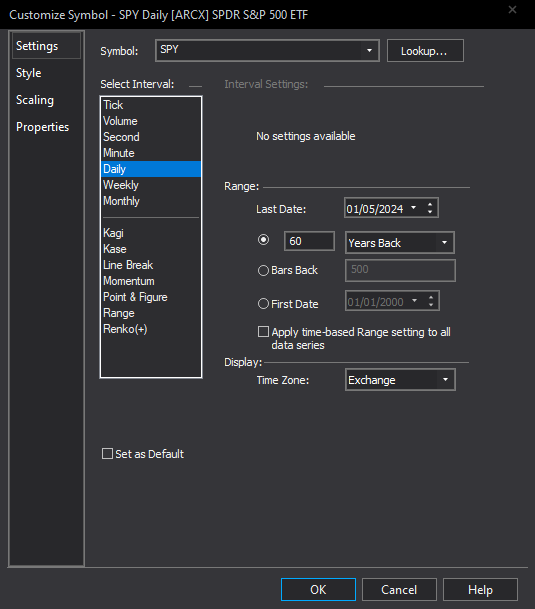
- Confirm the chart’s symbol, timeframe, and first date match the code comments. (Select the chart → Timeframe → Customize to check/adjust.)
Apply the strategy & set Max Bars Back
- Select the chart, right-click → Studies → Add Strategy, choose the strategy, and click OK.
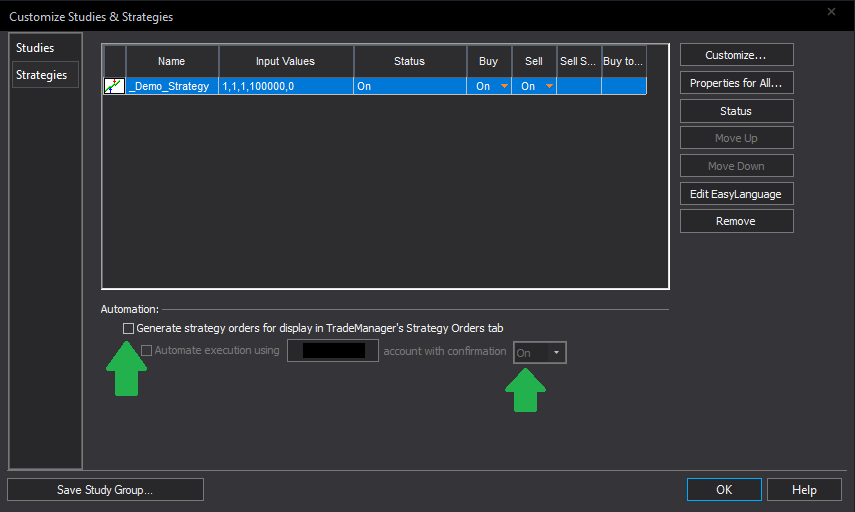
- In the Customize Studies and Strategies window, click Properties for All.
- Set Maximum number of bars study will reference to the value from the code comments, then OK. (Set too low, the strategy won’t calculate.)
- Make sure the strategy’s Status is On — if not, click Status to turn it on — then OK.
See the backtest
If every step worked, simulated past trades now appear on the chart. For the full report:
- Right-click the chart → Data → Strategy Performance Report (or press Shift + Alt + P).
Adjust inputs & costs (optional)
- Inputs: in Customize Studies & Strategies, double-click the strategy line to edit any Input Value (the parameters tagged
variablein the code). The defaults are listed in the code if you want to reset — or just remove and re-add the strategy (Step 5). - Costs: set commissions and slippage to the modeled values shown on the product page (Properties → Costs) so your backtest lines up with ours.
Using MultiCharts instead
MultiCharts calls strategies “Signals,” and it doesn’t use TradeStation’s .tsw workspace — you’ll set the chart up yourself from the code comments (symbol, timeframe, max bars).
- Open File → New → PowerLanguage Editor Window.
- Choose File → Import (or Ctrl+I), tick Signal (and Indicator/Function if present), select the study, OK, then press F3 to compile.
- If the
.eldwon’t import (it may be protected), instead do File → New → Signal, paste the code, and press F3. - Open a chart for the symbol & timeframe from the comments, choose Insert → Signal, pick the strategy, then use Format → Signals to set the inputs and the max-bars/study reference.
Automated trading (optional)
TradeStation can place orders for you when a strategy runs in real time. This is entirely optional and your responsibility.
- Right-click the chart → Studies → Edit Studies.
- Under Automation, choose Generate strategy orders… → Automate execution using… → pick Confirmation ON or OFF.
Confirmation OFF means trades execute automatically; Confirmation ON shows a popup to confirm each new trade before it’s placed.
Warning
Never leave an automated trading system unsupervised until you are completely comfortable with its behavior. Test thoroughly on a simulated account first.
Troubleshooting
- Don’t see it in Add Strategy? Re-run the import and confirm you imported a Strategy; a restart of TradeStation usually makes it appear.
- Strategy added but the chart’s blank / no trades? Most often the Max Bars Back is too low, or the symbol/timeframe doesn’t match the code comments — fix those first.
- Verify failed? You may be on an older EasyLanguage version — update TradeStation, then re-verify.
- MultiCharts import greyed out or errors? The
.eldmay be protected; paste the code into a new Signal and compile. - Numbers don’t match the product page? Check commissions/slippage, interval, history loaded, and Max Bars Back.
Stuck on a step? Email kurt@relaxedtrader.com or use Contact — tell me your platform and what you see, and I’ll get you running. Helpful reference: TradeStation Platform Help.
— Kurt
Important disclosures
RelaxedTrader is an educational and informational service and is not a registered investment advisor or broker-dealer. Nothing here is personalized financial advice or a recommendation to buy or sell any security. You install, configure, and run these strategies yourself, and every trade you place is your own decision. The risk of trading securities can be substantial.
Past performance is not necessarily indicative of future results. Performance figures on the product pages are historical back-tests — hypothetical, reflecting modeled (estimated) commissions and slippage, with inherent limitations because the trades were not executed live. You must review and agree to the full disclaimer and terms of service before using this code; continued use indicates your consent.
CFTC Rule 4.41 — Hypothetical or simulated performance results have certain limitations. Unlike an actual performance record, simulated results do not represent actual trading. Also, since the trades have not been executed, the results may have under- or over-compensated for the impact, if any, of certain market factors, such as lack of liquidity. Simulated trading programs in general are also subject to the fact that they are designed with the benefit of hindsight. No representation is being made that any account will or is likely to achieve profit or losses similar to those shown.